
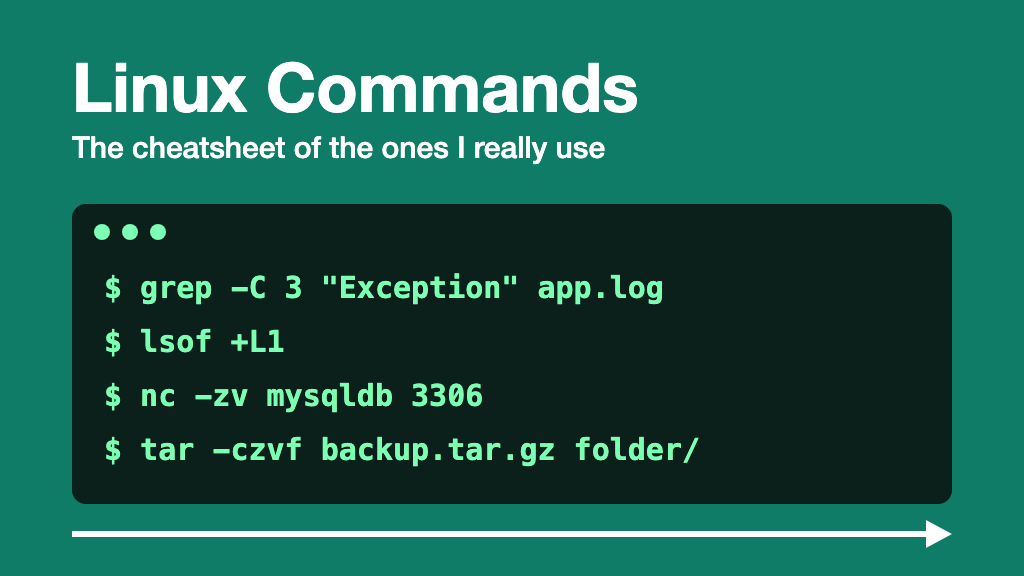
I've been tinkering with servers, containers and terminals for years (this very blog lives on a droplet running Docker), and there's a handful of commands I end up using over and over. The problem is that, apart from the usual four, I can never remember the exact options, and I end up searching for the same thing for the umpteenth time. So this post is mostly for me: a cheatsheet with the commands and options I really use, and at the end a few real cases where they get combined.
grep: searching text
grep "error" app.log                  # lines that contain "error"
grep -i "error" app.log               # case-insensitive
grep -n "error" app.log               # with line numbers
grep -v "debug" app.log               # the lines that do NOT contain "debug"
grep -c "error" app.log               # how many lines match
grep -w "user" app.log                # whole word ("user", not "username")
grep -E "error|warning" app.log       # several options (extended regular expression)
grep -C 3 "Exception" app.log         # 3 lines of context before and after
grep -A 5 "Exception" app.log         # 5 lines after (-B for before)
grep -rn "TODO" .                     # recursive through the whole directory
grep -rl "TODO" .                     # file names only
grep -rn "TODO" --include="*.js" .    # only in .js files
grep -rn "TODO" --exclude-dir=node_modules .
zgrep "error" app.log.gz              # inside a compressed file
-C is one of the ones I use most: a lone error line rarely tells you anything, and the lines around it are often half the diagnosis.
find: searching files
find . -name "*.log"                  # by name
find . -iname "readme*"               # case-insensitive
find . -type f                        # files only (-type d for directories)
find . -maxdepth 1 -type d            # without going down more than one level
find . -mtime -1                      # modified in the last 24 hours
find . -mtime +30                     # modified more than 30 days ago
find . -size +100M                    # larger than 100 MB
find . -empty                         # empty
find . -name "*.tmp" -delete          # search and delete
find . -name "*.sh" -exec chmod +x {} +   # run a command on each result
A tip that has saved me from a scare or two: before running any find with -delete or -exec rm, run it first without that part, to see exactly what it's going to delete.
curl: talking HTTP
curl https://www.mallotore.com                     # plain GET
curl -I https://www.mallotore.com                  # headers only
curl -L http://mallotore.com                       # follow redirects
curl -o page.html https://www.mallotore.com        # save with the name you want
curl -O https://example.com/file.zip               # save with the original name
curl -s https://api.example.com/users              # no progress bar
curl -v https://www.mallotore.com                  # every detail (TLS, headers...)
curl -u user:password https://api.example.com      # basic authentication
curl -H "Authorization: Bearer $TOKEN" https://api.example.com

curl -X POST https://api.example.com/users \
  -H "Content-Type: application/json" \
  -d '{"name": "Jaime"}'                           # POST with JSON

curl -F "file=@photo.jpg" https://api.example.com/upload    # upload a file

curl -s -o /dev/null -w "%{http_code}\n" https://www.mallotore.com   # status code only
There's also the -k option, which ignores certificate errors. Handy to get by locally, but if you catch yourself using it against something in production, the problem isn't curl.
lsof: who has what open
sudo lsof -i :8080         # which process is using port 8080
sudo lsof -i -nP           # all network connections (-nP: no name resolution, faster)
lsof -p 1234               # files opened by process 1234
lsof -u jaime              # files opened by a user
lsof +D /var/log           # who has something open inside a directory
sudo lsof +L1              # deleted files that are still taking up space
The last one is pure gold, and I explain it further down in the use cases.
nc: testing network connections
nc (netcat) is the Swiss Army knife of networking: it opens a TCP or UDP connection to wherever you tell it, or it sits listening on a port. I mostly use it to answer the question "can I reach that service or not?", before I start suspecting the application.
nc -zv mallotore.com 443        # is port 443 open? (-z: just check, don't send data)
nc -zv server 20-25             # a range of ports
nc -zv -w 3 server 5432         # with a 3-second timeout, so you don't sit waiting
nc -zvu server 53               # over UDP
nc -l 1234                      # listen on port 1234
And a trick that has got me out of more than one jam: moving a file between two machines without setting anything else up. On the one that receives:
nc -l 1234 > file.tar.gz
And on the one that sends:
nc server 1234 < file.tar.gz
Careful, it goes unencrypted, so only for networks you trust. And a warning: there are several versions of netcat (OpenBSD's, the traditional one, Nmap's ncat) and the options change a bit between them. For example, in the traditional one, to listen you have to write nc -l -p 1234. If something doesn't work the way you expect, check which one you have installed.
chmod and chown: permissions
Permissions are read in three groups (user, group, others), and each one adds up: read = 4, write = 2, execute = 1. So 7 is everything (4+2+1), 6 is read and write, and 5 is read and execute.
chmod 644 file.txt         # I read and write, everyone else just reads
chmod 755 script.sh        # I can do everything, everyone else reads and executes
chmod 600 ~/.ssh/id_rsa    # only me, nobody else (SSH requires it for keys)
chmod +x script.sh         # give it execute permission
chmod u+w,g-w,o-r file     # in letter mode: add and remove specific permissions
chmod -R 755 folder/       # recursive
chown jaime:www-data file          # change owner and group
chown -R jaime:jaime folder/
Watch out for the blunt chmod -R 755: it leaves every file executable. The finer way is to treat directories and files separately:
find . -type d -exec chmod 755 {} +
find . -type f -exec chmod 644 {} +
And if some forum tells you to fix it with chmod 777, be suspicious: it doesn't fix anything, it just takes the door off.
tar: packing and compressing
tar -czvf backup.tar.gz folder/           # create a gzip-compressed archive
tar -xzvf backup.tar.gz                   # extract
tar -xzvf backup.tar.gz -C /destination   # extract into another directory
tar -tzvf backup.tar.gz                   # list the contents without extracting
tar -czvf backup.tar.gz --exclude="node_modules" project/
tar --zstd -cvf backup.tar.zst folder/    # with zstd, faster and compresses better
The way I remember the letters: create, extract or list; z for gzip; v for verbose; and f always last, because the file name comes right after it.
And a few more I use every day
Disk space:
df -h                                  # free space per disk
du -sh folder/                         # how much a folder takes up
du -h --max-depth=1 | sort -h          # what takes up the most inside the current folder
Processes and ports:
ps aux | grep java                     # find a process
pgrep -a java                          # same thing, cleaner
kill 1234                              # ask a process to finish
kill -9 1234                           # force it (last resort, it gets no chance to clean up)
pkill java                             # end processes by name, no need to look up the PID
pkill -f "java -jar my-app.jar"        # matching against the full command line
pkill -u jaime                         # every process of a user
sudo ss -tulpn                         # listening ports (the replacement for netstat)
I use pkill all the time, but with the same care as find -delete: especially with -f, the pattern can match more processes than you think. Before killing anything, I run pgrep -af with the same pattern to see exactly who is going to get it.
Live logs:
tail -f app.log                        # watch what gets written
tail -n 200 app.log                    # the last 200 lines
journalctl -u nginx -f                 # logs of a systemd service
docker logs -f --tail 100 ghost        # logs of a container
Copying between machines:
scp file.txt user@server:/path/
rsync -avz --progress folder/ user@server:/path/   # only copies what has changed
JSON in the terminal, with jq, which doesn't come out of the box but is essential:
curl -s https://api.example.com/users | jq '.'              # formatted and in color
curl -s https://api.example.com/users | jq '.[].name'       # pull out a field
Repeating a command every X seconds:
watch -n 5 "df -h"
And a shortcut that isn't a command but changed my life: Ctrl+R in the terminal searches your history. You type a piece of the command you ran three days ago, and there it is.
Use cases
Where you really see how useful they are is when you combine them. These are the ones that have saved me the most.
"It won't start because the port is taken". It happens a lot when bringing up containers:
sudo lsof -i :80
# or
sudo ss -tulpn | grep :80
It tells you which process has it and its PID. From there, you decide whether to stop it or change the port.
"The application can't reach the database". Before going through connection strings and configuration, I check whether there's a connection at all. With Docker Compose, from inside the container itself:
docker compose exec ghost nc -zv mysqldb 3306
If it answers, the problem is in the application (credentials, configuration). If not, it's in the network. It saves you from looking for the failure in the wrong place. Of course, nc has to be installed in the container, which isn't always the case in very minimal images.
And a trap I found by trying it on Ghost's alpine image, where nc is BusyBox's: if the port is closed, it prints nothing. Not even a "Connection refused". When it works it tells you open, and when it doesn't, silence. To tell them apart, don't trust the text, check the exit code with echo $? (0 if it connects, 1 if not).
"The disk is full". The classic of any machine. I've never had to suffer it in production, but precisely because it's so typical it's worth having it clear. Order matters: first confirm which partition is full, and then go down to the specific directory or file:
df -h                                       # FIRST: which partition is full
du -sh /var/log/* | sort -rh | head -10     # THEN: which specific directory or file
sudo find / -xdev -type f -size +500M 2>/dev/null   # huge files on that partition
docker system df                            # if you use Docker, what images and volumes take up
And here comes the trap everybody falls into at some point: you find a giant log, delete it with rm... and df -h still says the disk is full. Why? Because if a process has that file open, rm only deletes the name. The content (the inode) stays alive, orphaned but taking up disk, until the process closes the file. To find them:
sudo lsof +L1 # deleted files that some process still has open
If you've already fallen in, the fix is to restart that process so it lets go of the file. But the right thing is not to delete the log, but to truncate it, that is, empty it without removing it:
truncate -s 0 /var/log/app/error.log
# equivalent:
> /var/log/app/error.log
With one very important caveat, though: truncating is destructive and irreversible. It's not like moving something to the trash: the content disappears completely at that instant, and there's no way to compress or archive it afterwards. If that log is valuable for understanding what happened (not just to put out the fire, but to find out why it started), the only sequence that keeps the information is to compress it before truncating, never after:
gzip -c /var/log/app/error.log > /var/log/app/error.log.$(date +%Y%m%d_%H%M%S).gz
truncate -s 0 /var/log/app/error.log
In the end, the real decision isn't a sequence of steps but a balance: preserve the evidence (compress first, and take a bit longer) or restore the service right now (truncate right now, accepting the loss). Both are legitimate depending on how serious the situation is, but at the moment of deciding you have to pick one, because once it's truncated, there's no going back.
So it doesn't happen again: logrotate. The best thing for a disk full of logs is never getting there. logrotate comes installed on almost every distribution and takes care of rotating, compressing and deleting old logs on its own. A file in /etc/logrotate.d/myapp is all it takes:
/var/log/myapp/*.log {
    daily
    rotate 14
    compress
    delaycompress
    missingok
    notifempty
    copytruncate
}
It rotates every day, keeps 14 days compressed and deletes the oldest. copytruncate is exactly what we saw earlier, but automated: it copies the log and truncates the original, for applications that don't know how to reopen their log file. It has a small price: whatever gets written right between the copy and the truncate is lost. If your application knows how to reopen its logs when you ask, it's better to use a postrotate that tells it to.
And if your applications run in Docker, container logs also grow without limit by default. You control it in compose.yaml itself, in each service:
logging:
  driver: json-file
  options:
    max-size: "10m"
    max-file: "3"
Cleaning up old logs:
find /var/log/myapp -name "*.log" -mtime +30 -delete
Analyzing nginx logs. With the default log format, the IP is the first field and the status code the ninth, so:
# the 10 IPs making the most requests
awk '{print $1}' access.log | sort | uniq -c | sort -rn | head

# the URLs returning 404
awk '$9 == 404 {print $7}' access.log | sort | uniq -c | sort -rn | head
The first one is very useful when you notice the server is under load and suspect some bot with too much enthusiasm.
Checking the HTTPS redirect and the certificate expiry. If you've read the post on free SSL with Let's Encrypt in Docker, this will come in handy to check that everything works as it should:
curl -I http://mallotore.com                      # should return a 301 to https
curl -vI https://www.mallotore.com 2>&1 | grep -i "expire"
Backing up the blog and taking it to another machine. This is a quick and dirty version, to show how tar, date and rsync combine; my real one is a separate script that does quite a bit more:
tar -czvf ghost-$(date +%F).tar.gz ghost/content
rsync -avz --progress ghost-*.tar.gz user@backup:/backups/
$(date +%F) puts the date in the name (ghost-2026-09-26.tar.gz), so you don't overwrite earlier copies.
Watching that the site responds:
watch -n 10 'curl -s -o /dev/null -w "%{http_code}" https://www.mallotore.com'
The modern versions
Almost every command in this post comes built into any Linux, and that's why they're worth knowing: on any server you connect to, they'll be there. But on your own machine, there are modern alternatives that are faster and more comfortable, and that I already use almost all the time:
- ripgrep (
rg) instead ofgrep -r: much faster, and it respects.gitignorewithout being told. - fd instead of
find: simpler syntax (fd "\.log$") and it also respects.gitignore. - bat instead of
cat: with colors and line numbers. - htop or btop instead of
top: the same thing, but readable. - ncdu instead of
du: you browse through the folders seeing what takes up the most, interactively. For the full-disk case, it's a marvel.
To wrap up
None of these commands is new, and that's exactly why they're still so useful: they've been around for decades and they'll keep being around. You don't need to know every option by heart (I certainly don't, that's why this post exists), but you do need to know they exist, so that when the disk is full or the port is taken you know where to start. The rest is just a matter of keeping the cheatsheet handy.